> ## Documentation Index
> Fetch the complete documentation index at: https://docs.littleregistry.com/llms.txt
> Use this file to discover all available pages before exploring further.
# Quick Start
> Launch your own gift registry in minutes
## 🕹 5 steps to add a Gift Registry to your Shopify store
1. Install the Little Registry App from Shopify
2. Enable "Add to Registry" buttons on product pages
3. Add "Gift Manager" to your site
4. Customize your Shoppable Wish List page
5. Add a "Gift Registry Page" to your site
## Step 1: Install the Little Registry App from Shopify
* Visit the [Little Registry: Gift Registry app page](https://apps.shopify.com/little-registry) on the Shopify App Store.
* Click “Add app” and follow the installation prompts.
* After installation, you can open the app directly from your Shopify admin to begin setting up your registry.
## Step 2: Enable "Add to Registry" buttons on product pages
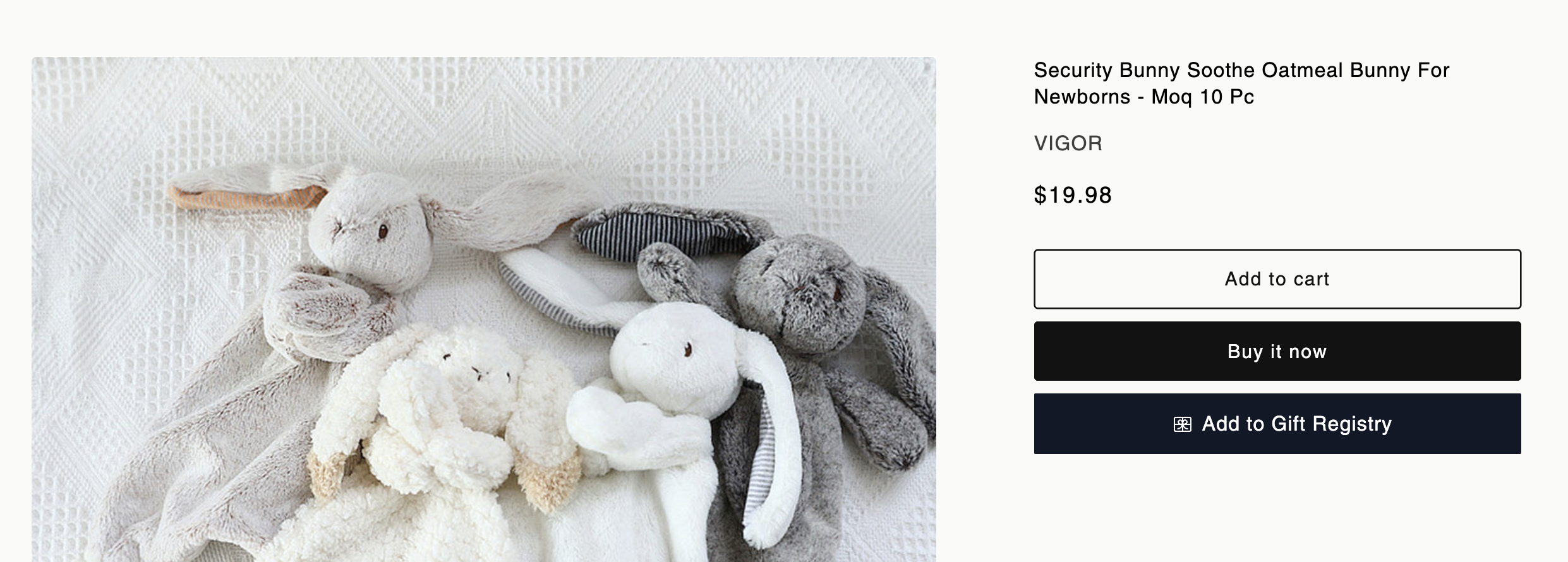
This button lets your users add any store items to their gift list.
* Go to your store theme settings
* Navigate to the product pages section
* Follow [the instructions here](https://docs.littleregistry.com/setup/enable-add-to-registry-button) to add the button to your product page.
 ## Step 3: Add "Gift Manager" to your site
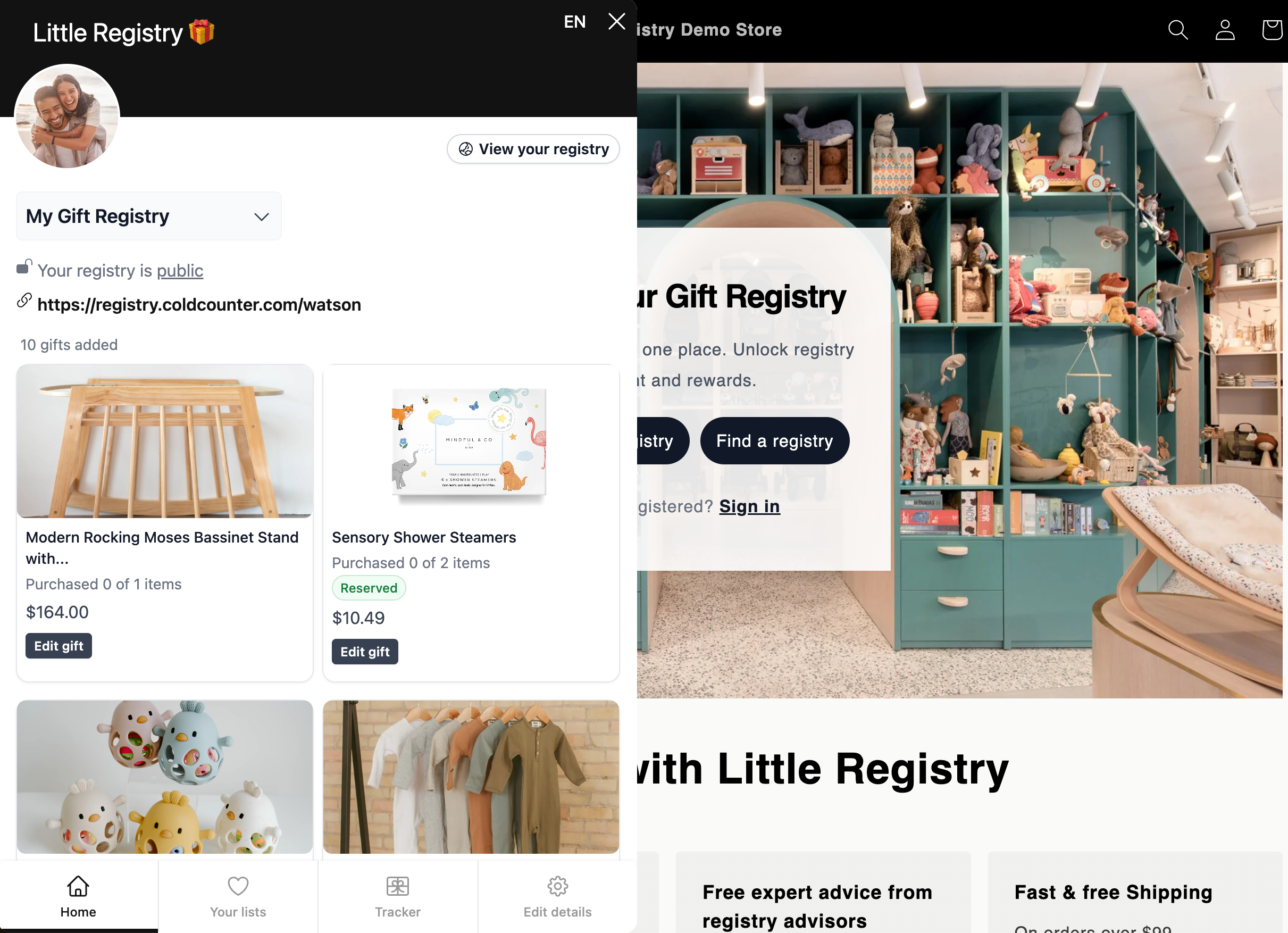
Our Gift Manager lets users easily add, view, and edit gifts in their registry — follow [the tutorial](https://docs.littleregistry.com/setup/enable-gift-manager) to get started.
* Name your Gift Registry Program in the onboarding or display settings to set the widget’s display name.
* In your Shopify theme, toggle on Little Registry’s **“Gift Registry Widget”** and customize its style, colors, text, and position in the app embeds panel.
Explore different **Gift Manager display options** on[ this page](https://docs.littleregistry.com/setup/gift-manager-display-options).
## Step 3: Add "Gift Manager" to your site
Our Gift Manager lets users easily add, view, and edit gifts in their registry — follow [the tutorial](https://docs.littleregistry.com/setup/enable-gift-manager) to get started.
* Name your Gift Registry Program in the onboarding or display settings to set the widget’s display name.
* In your Shopify theme, toggle on Little Registry’s **“Gift Registry Widget”** and customize its style, colors, text, and position in the app embeds panel.
Explore different **Gift Manager display options** on[ this page](https://docs.littleregistry.com/setup/gift-manager-display-options).
 ## Step 4: Customize your Shoppable Wish List page
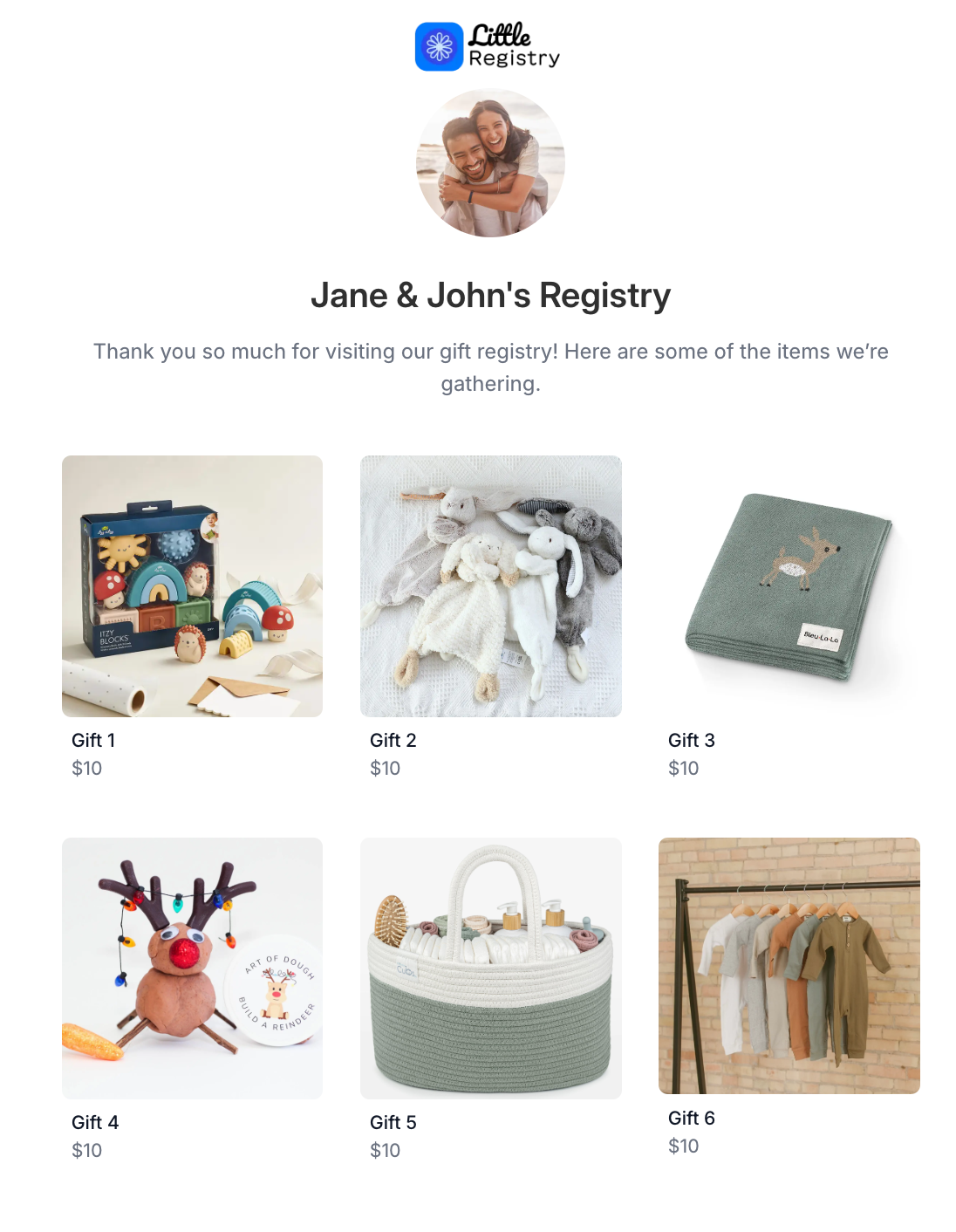
The shoppable wish list page is where your users share their gifting ideas with friends and family.
Upload your brand logo in the onboarding screen or the display setting in the app to white label your wish list page. Learn more from [this page](https://docs.littleregistry.com/setup/customize-shoppable-wishlist-page).
## Step 4: Customize your Shoppable Wish List page
The shoppable wish list page is where your users share their gifting ideas with friends and family.
Upload your brand logo in the onboarding screen or the display setting in the app to white label your wish list page. Learn more from [this page](https://docs.littleregistry.com/setup/customize-shoppable-wishlist-page).
 ## Step 5: Add a Gift Registry Page to your site
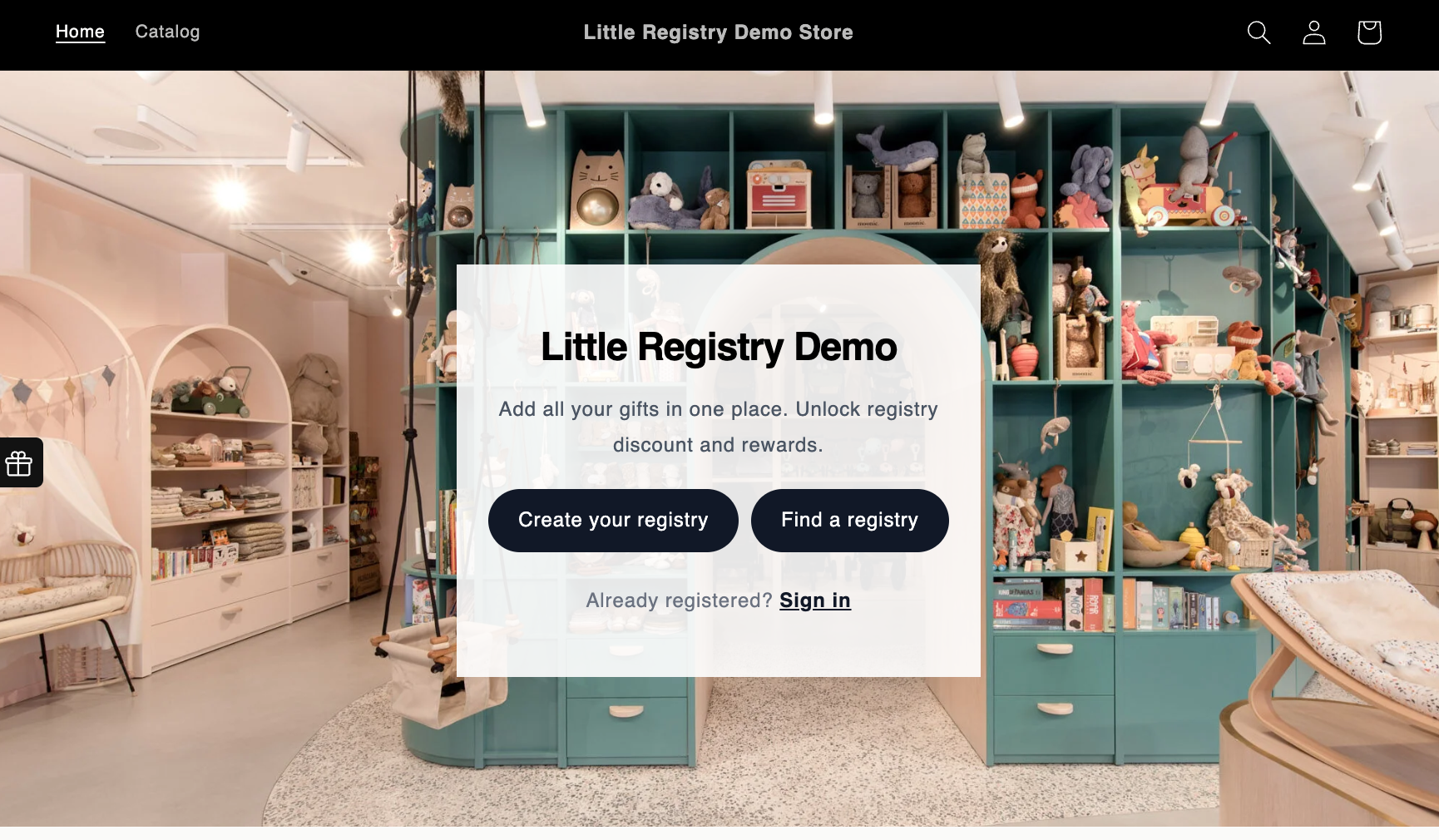
A Gift registry landing page is a great way to introduce your registry to your customers and provide them with more information about how it works. Follow the tutorial below to [set up your gift registry page](https://docs.littleregistry.com/setup/add-gift-registry-landing-page).
## Step 5: Add a Gift Registry Page to your site
A Gift registry landing page is a great way to introduce your registry to your customers and provide them with more information about how it works. Follow the tutorial below to [set up your gift registry page](https://docs.littleregistry.com/setup/add-gift-registry-landing-page).