Little Registry offers a variety of options to match your store’s aesthetic, covering five main areas:
  1. Gift Registry Landing Page 
  2. Gift Manager
  3. Add to Registry Button 
  4. Shoppable Public Registry  
  5. Email Alerts
If your store supports multiple languages, the registry will automatically adapt to the local language. For any additional translation support, feel free to contact us for assistance.

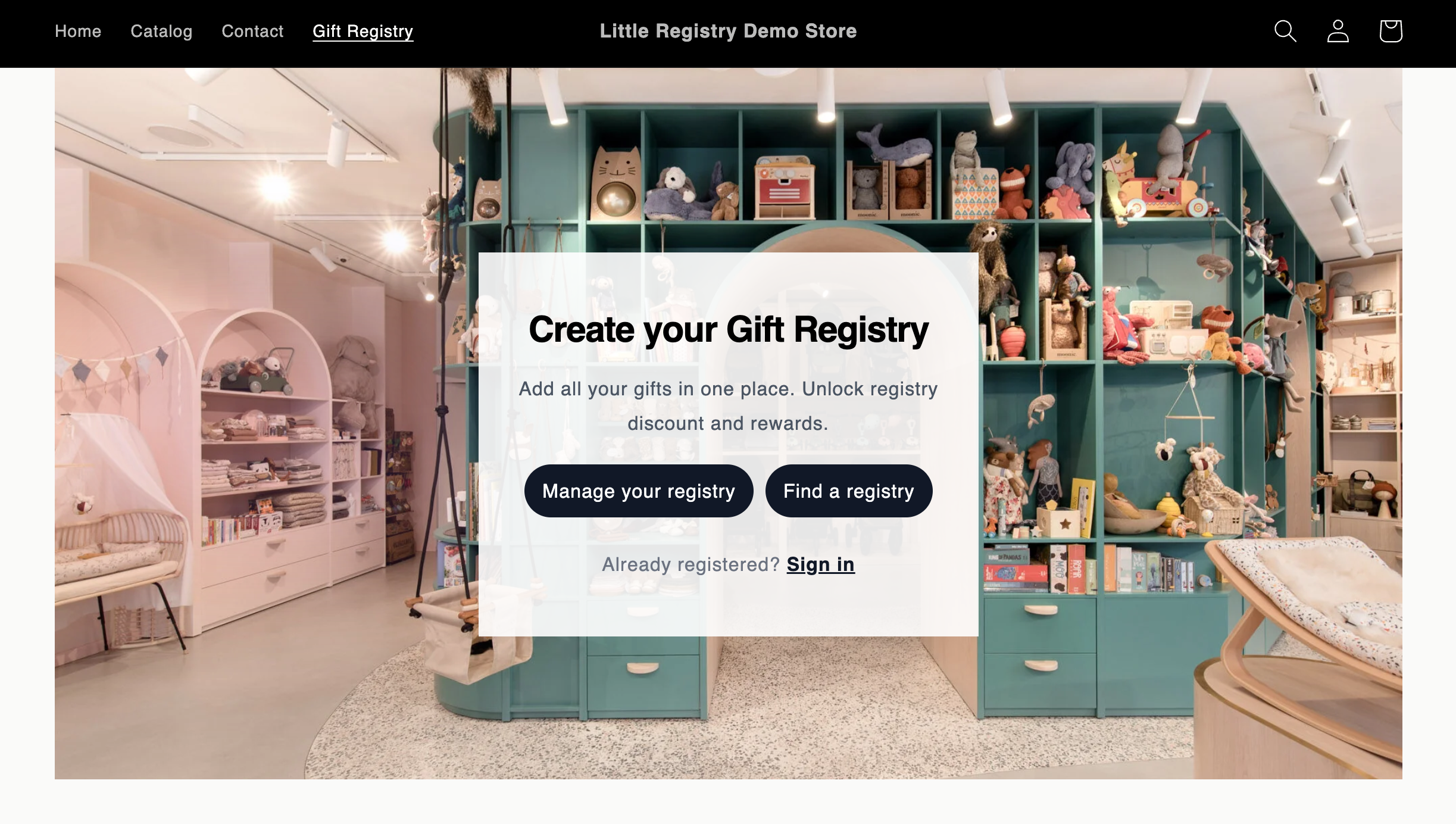
Gift Registry Landing Page 

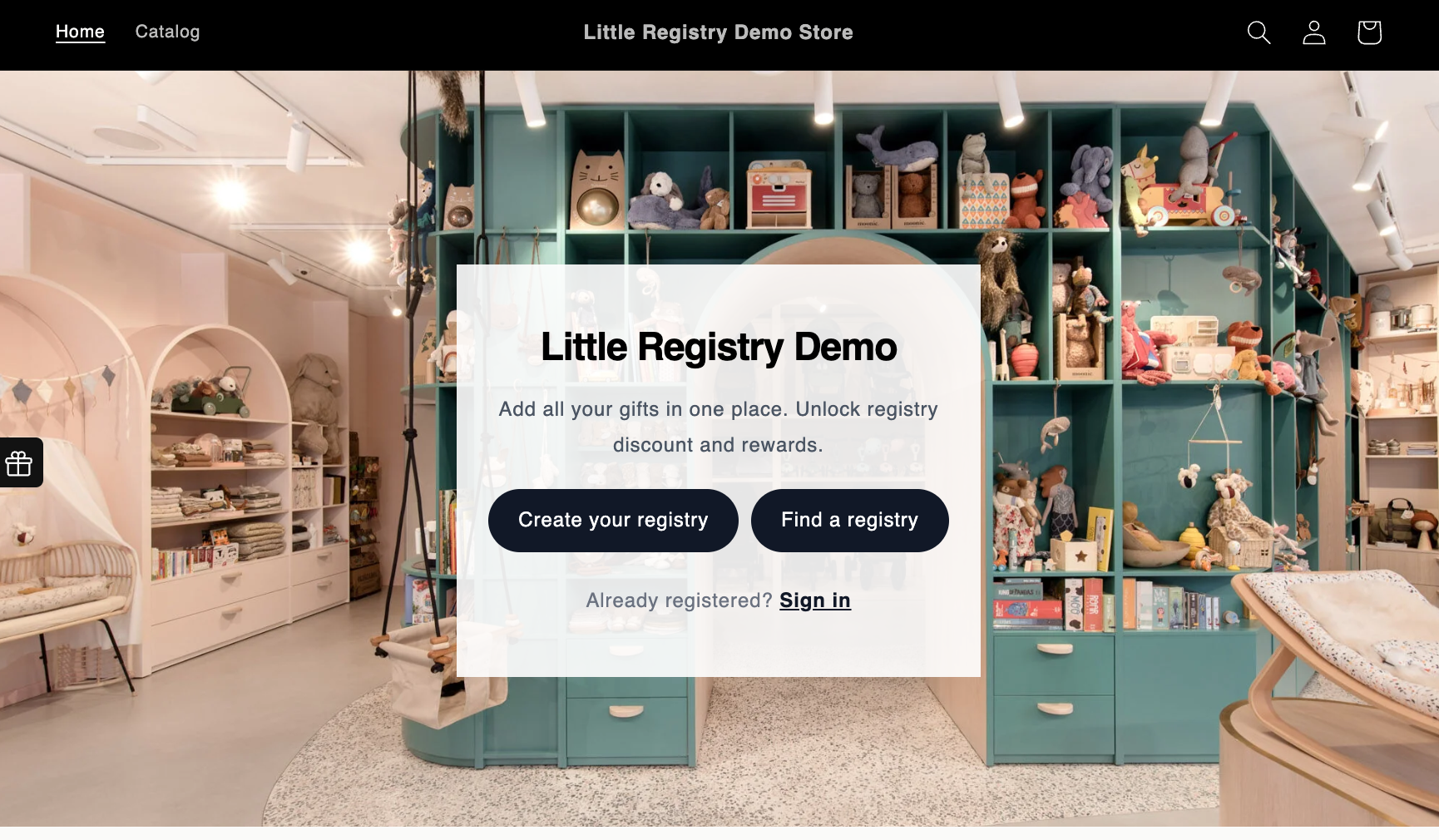
On the gift registry landing page, you’ll find a customizable page block template similar to the one shown in this image. You can customize the hero image, title, and subtitle, adjust text size and color, update the registry promotional message, and modify the button’s color, padding, and corner roundness. Gift Registry Landing Page Pn

Add to Registry Button

This button appears directly beneath the “Add to Cart” button in your product template. Add To Registry Button Pn Button Style & Color: Customize the button’s color, shape (including border radius), and fine-tune its dimensions, spacing, borders, and corner rounding for a polished, on-brand appearance.
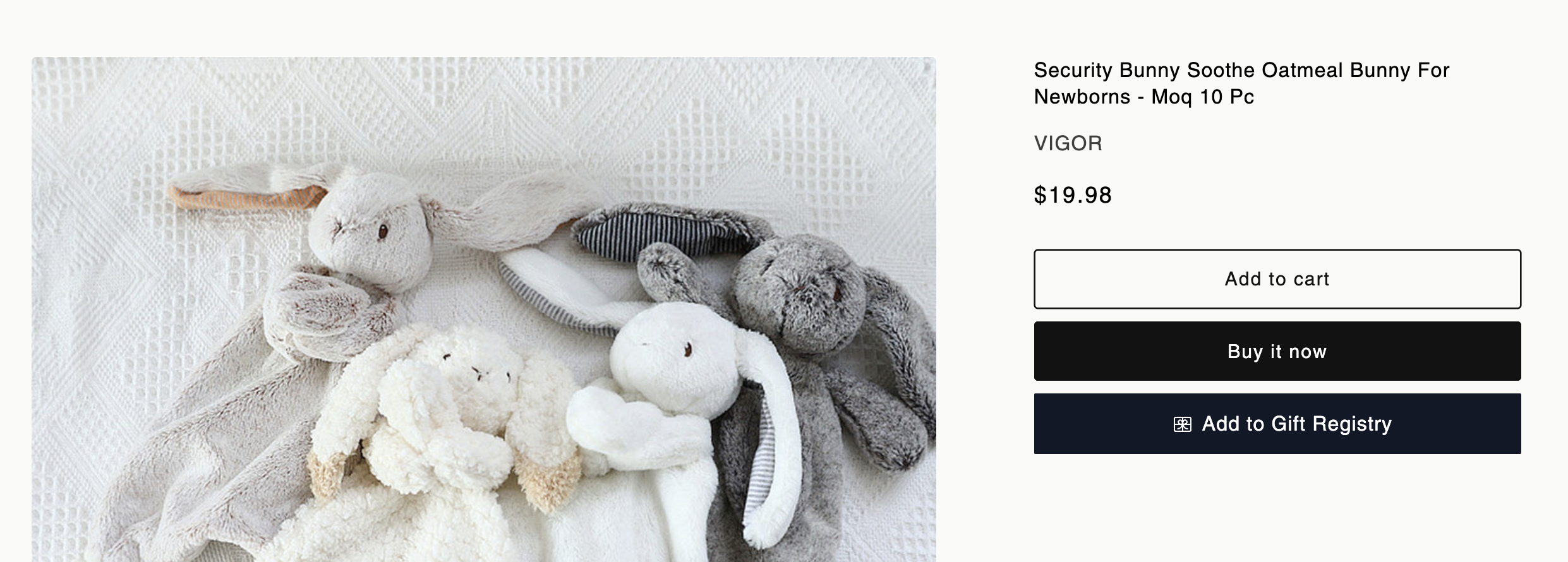
Button Font: The font style and size automatically match your store’s theme settings.
Button Text: You can update the button text (e.g., change “Add to Registry” to “Add to My Wishlist”).
Icon Customization: To replace default icons with ones that better align with your brand, contact Little Registry Support for assistance.
You can also choose where this button appears across your store. For example, you might display it only on specific collections—such as Baby & Kids—giving you full control over its visibility.

Gift Manager

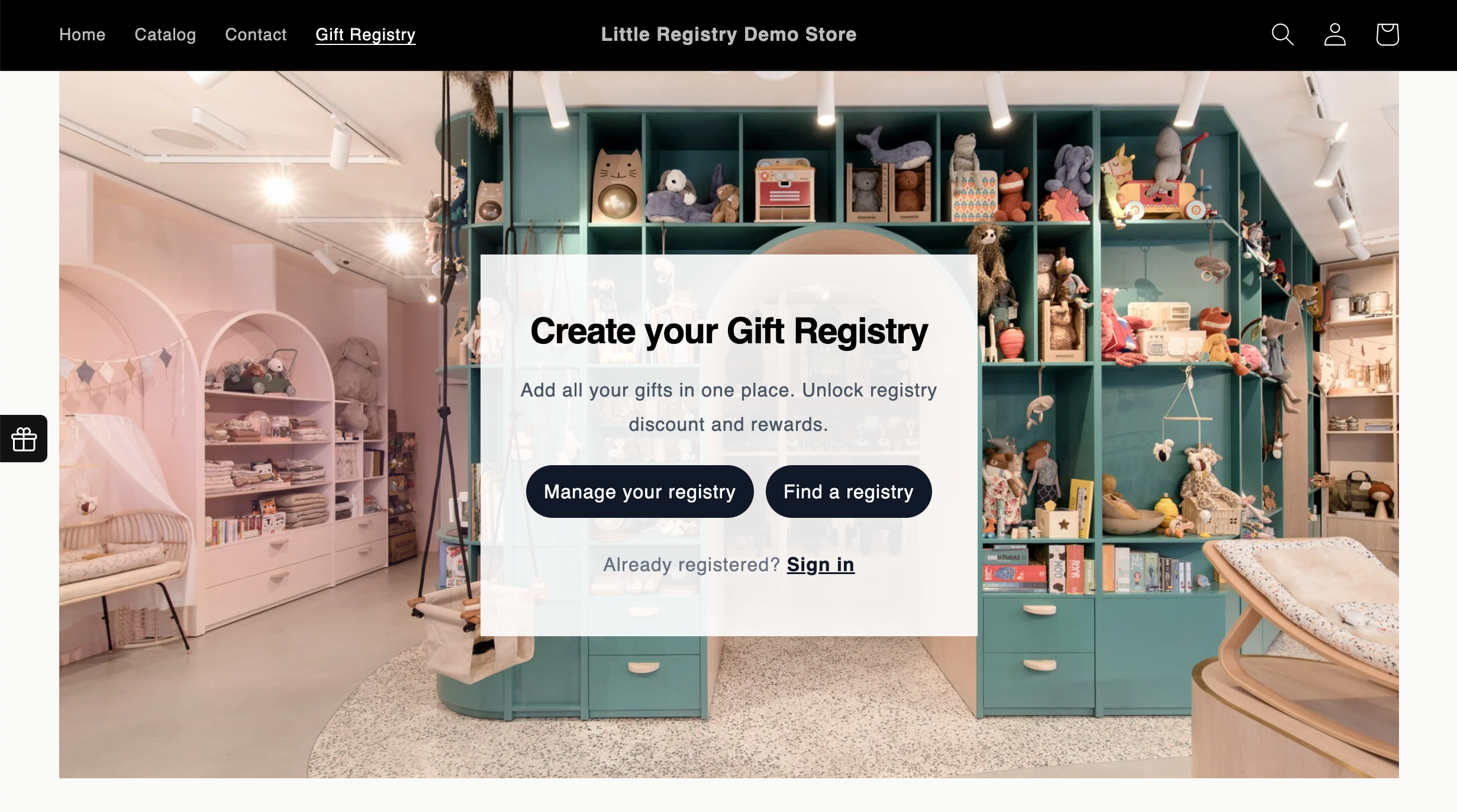
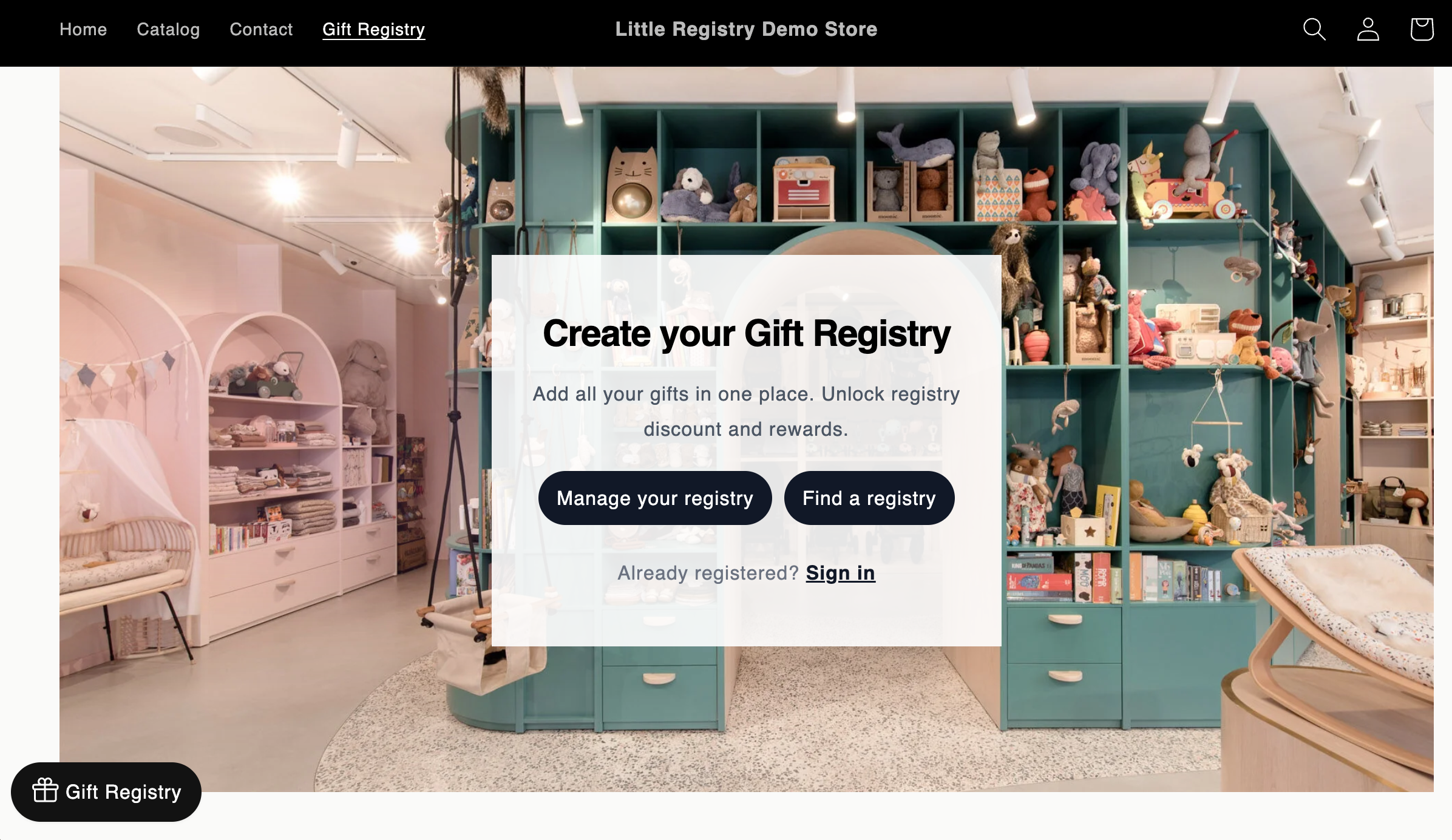
Your customers can open the Gift Manager to view gifts, purchases, and manage their registry. Little Registry provides a widget you can display in different ways. You can also customize the widget’s color to match your store’s design. Registry Widget You can adjust the position of the gift manager widget by choosing to display a quick navigation button on the side, at the bottom, or hide it entirely. 1. Side Icon A compact button on the side of the page. Side Button Widget Pn 2. Floating Button A button at the bottom (left or right) with customizable text. Floating Button Widget Pn 3. Hidden No visible widget. Customers access Gift Manager only through a “Manage Registry” link or any button you add to your storefront. Widget Hidden From View Pn

Shoppable Public Registry  

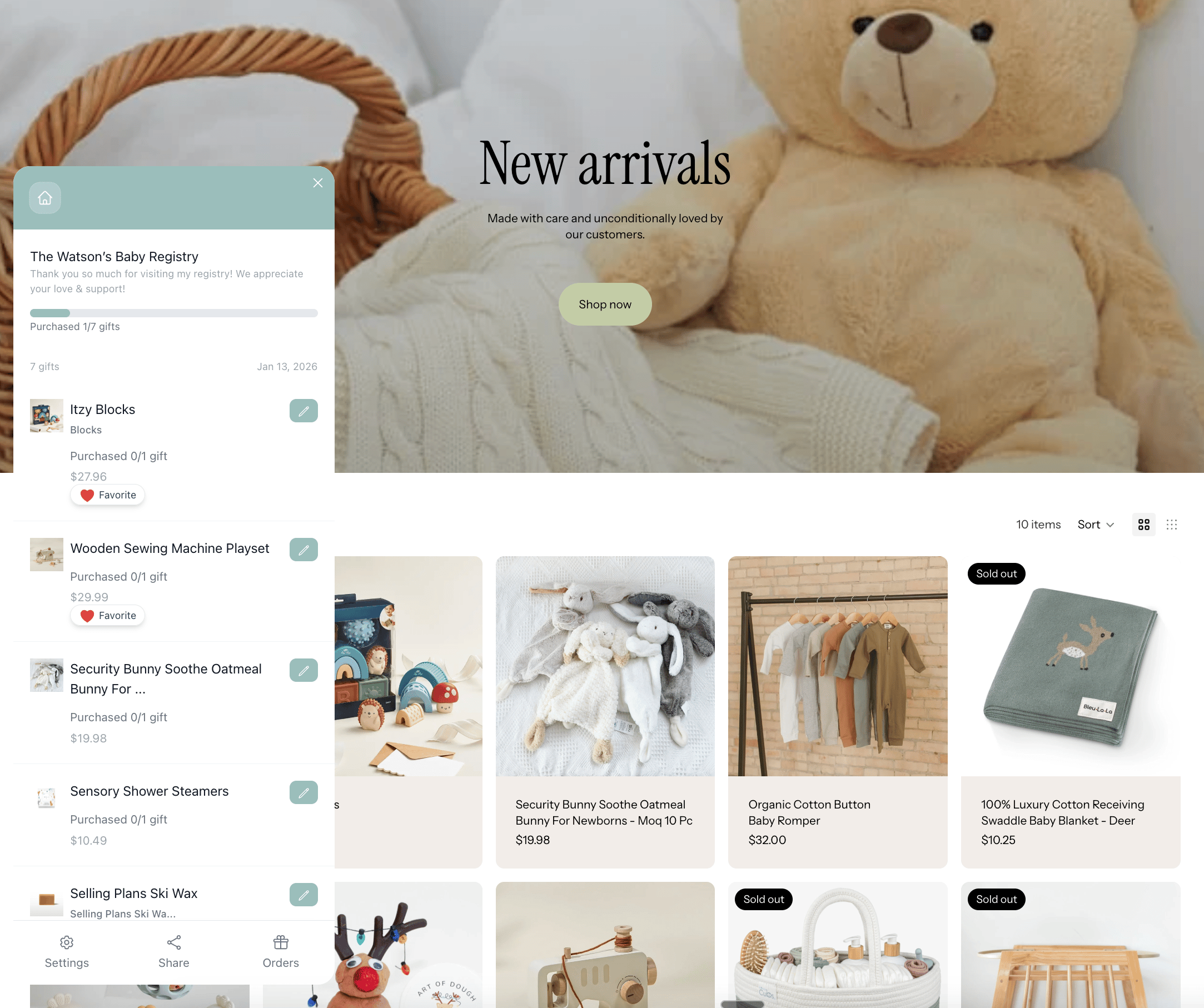
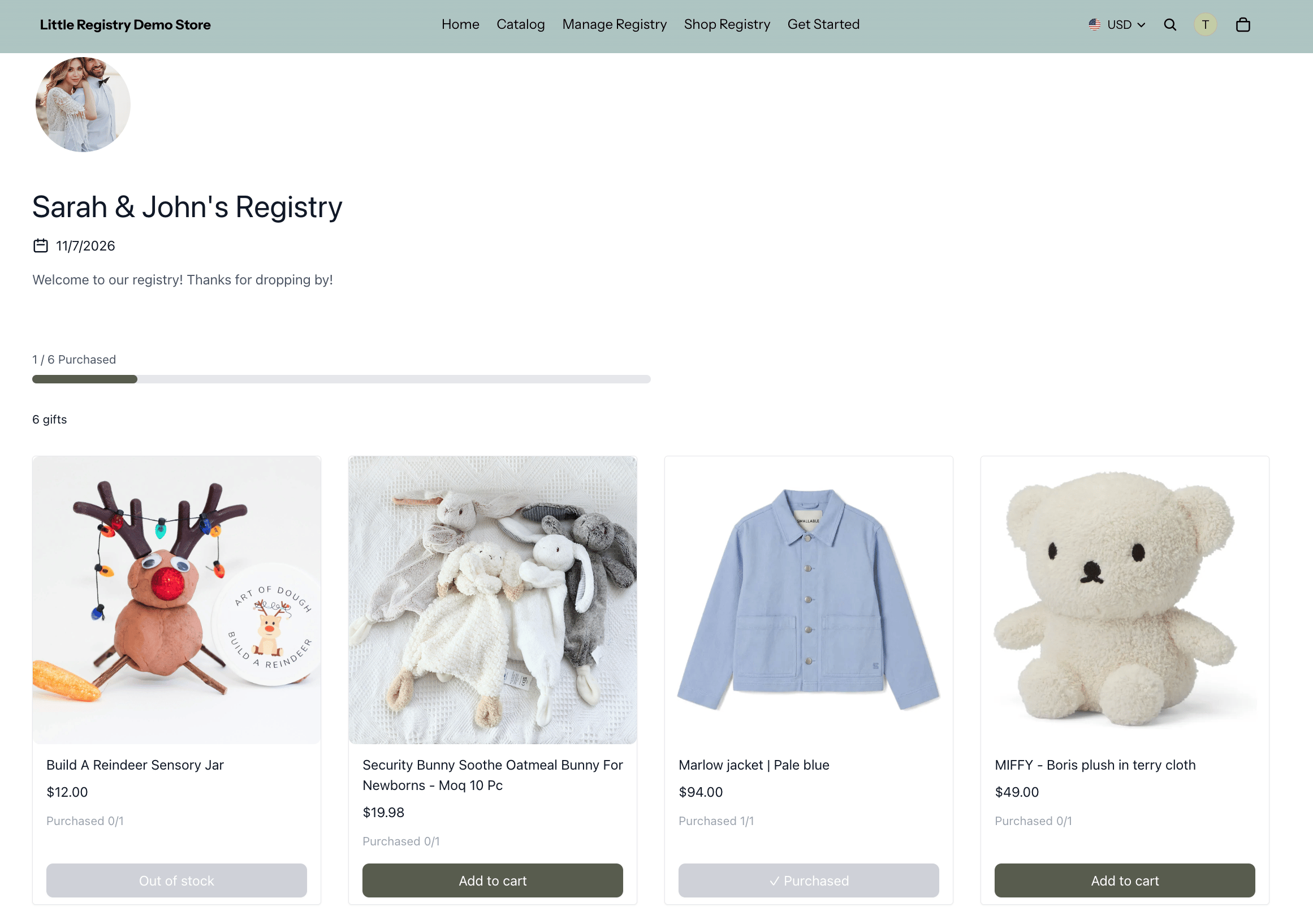
The shoppable public registry page allows users to share their gift ideas with friends and family. Public Shoppable Registry Custom Header: Your store’s header is displayed at the top of the page. For deeper customization—such as adjusting colors, fonts, button styles, or page layout—contact Little Registry. Additional fees may apply based on the scope of changes. Branded URL: The public registry page will always live directly inside your storefront, under your own store domain. The new public-facing registries will automatically be found at https://yourstore.com/apps/littleregistry/registry/<registry_name> User Personalization & Privacy Settings: Users can personalize their registry with a profile photo, title, and greeting message for their guests. They can also choose whether their wish list is Public, Private, or Password-Protected. Checkout Address Privacy: By default, a user’s shipping address is populated during checkout. For enhanced privacy, higher-tier plans offer an option to completely hide the user’s address from anyone purchasing from their registry.
Email Alerts

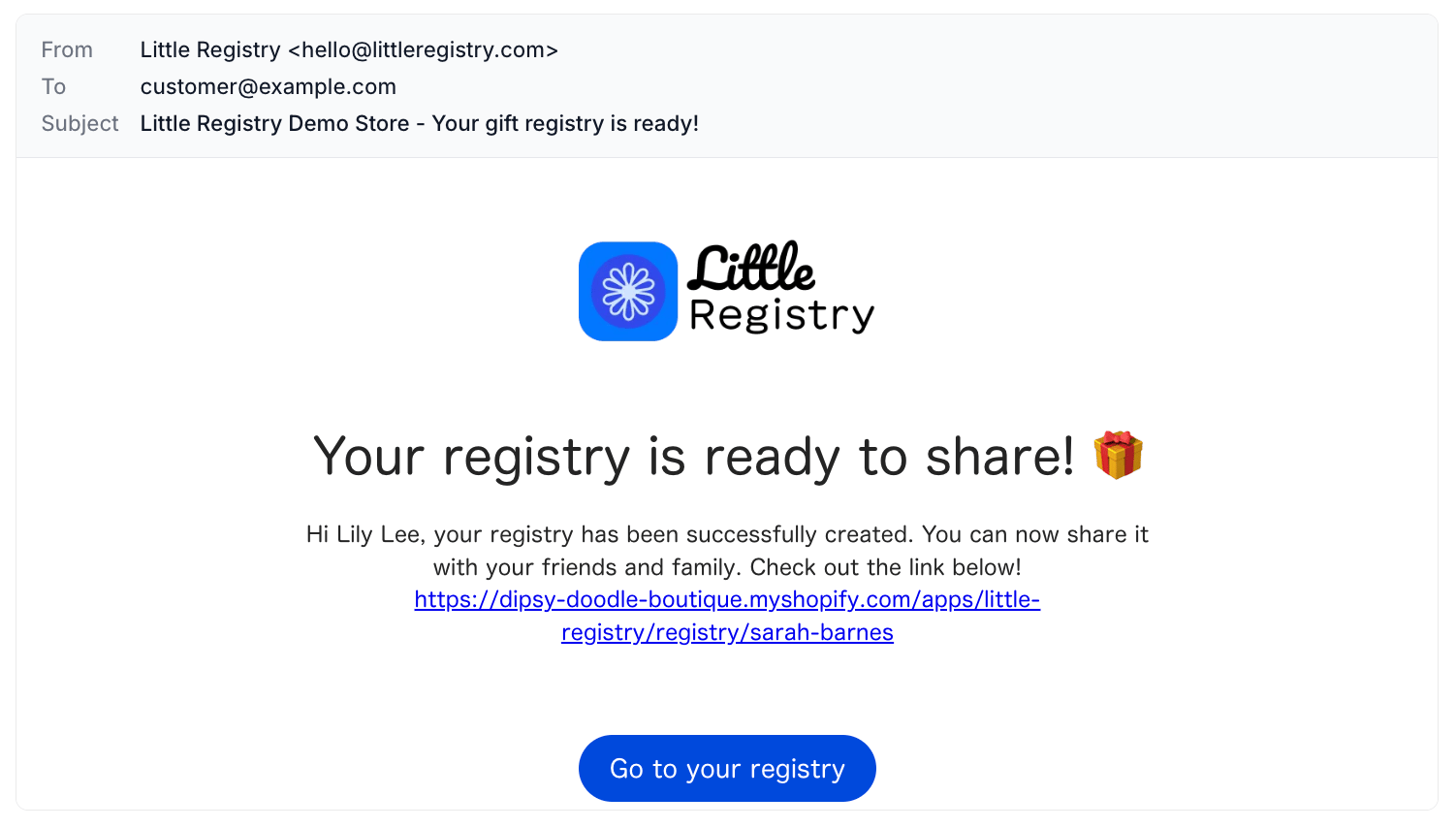
Email templates keep users informed whenever registry activity occurs. Registry Created Email Accent color & logo: Personalize your email templates with your accent color of choice, and update the logo directly in the app. Email notification selection: Choose which email notifications to send by checking off the ones that don’t apply to your store. Sender identity: Configure the sender identity so customers recognize the email as coming from your shop. Klaviyo integration (coming soon): Fully customize your email marketing content and design to match your store’s preferences.